
Supported Clients
Glance supports various client environments and provides specialized configuration for each. This guide will help you configure your applications to use Glance as a proxy.
Supported Environments
| Environment | Support Level | Configuration Method |
|---|---|---|
| Terminal/CLI | ✅ Native | Environment variables or one-liner |
| Java/JVM | ✅ Native | Automatic HttpsURLConnection overrides |
| Docker | ✅ One-Click | Transparent container recreation |
| Android | ✅ ADB-based | Automatic CA installation and proxy setup |
| Chromium | Dashboard (One-click) | Auto-launch with proxy flags |
| Python | ✅ Native | Environment variables or library-specific config |
| Node.js | ✅ Native | Environment variables or axios/fetch config |
| cURL | ✅ Native | -x flag or environment variables |
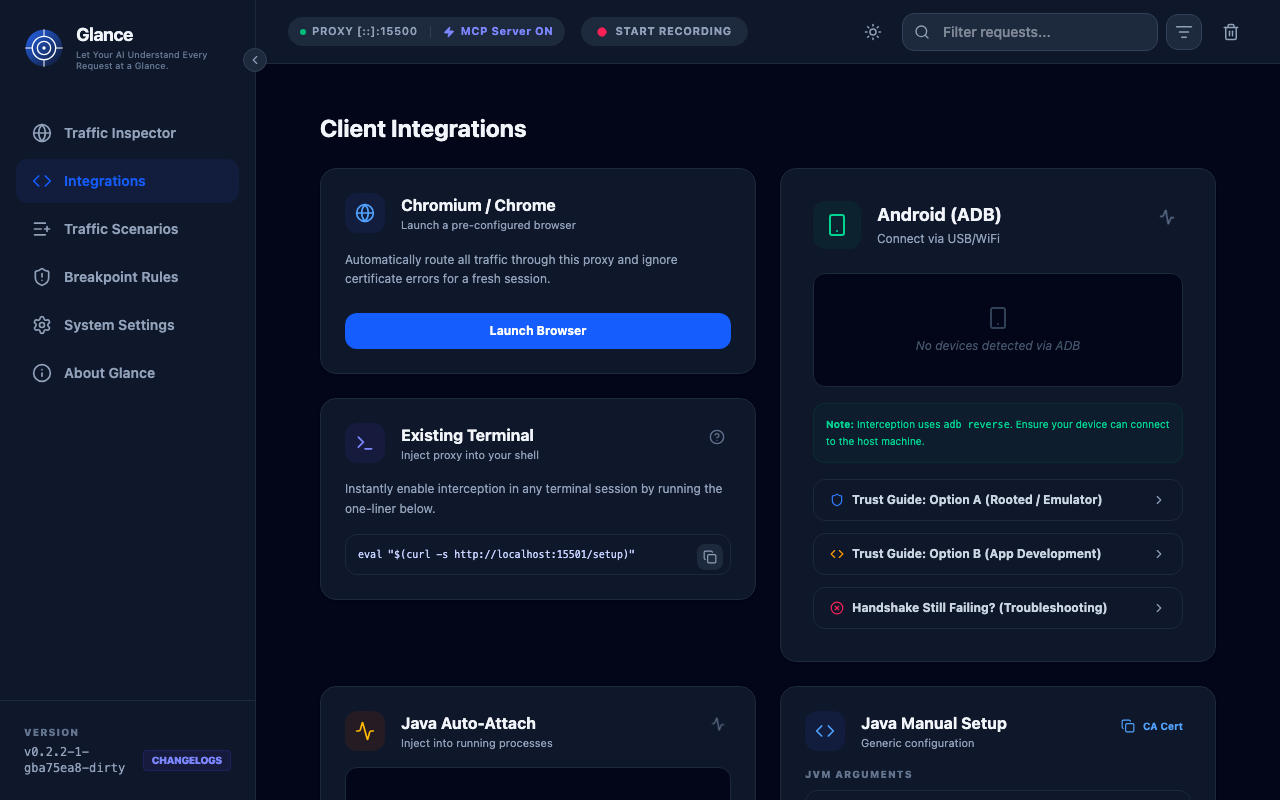
Quick Setup Methods
Terminal One-Liner (Recommended)
The easiest way to configure your terminal:
bash
eval "$(curl -s http://localhost:15501/setup)"This automatically sets up the current session with proper proxy environment variables.
Manual Environment Variables
Set these in your shell:
bash
export HTTP_PROXY=http://localhost:15500
export HTTPS_PROXY=http://localhost:15500
export NO_PROXY=localhost,127.0.0.1
For persistence, add to your shell profile (~/.bashrc, ~/.zshrc, etc.).
Platform-Specific Guides
For detailed configuration instructions for specific platforms:
- Java/JVM Applications - Native support with automatic certificate handling
- Docker Containers - One-click transparent interception and CA injection
- Android Devices - ADB-based setup with CA installation
- Chromium Browsers - Auto-launch configuration
- Terminal/CLI Tools - Advanced proxy configuration
Testing Your Configuration
After configuring your client, verify it's working:
bash
curl -x http://localhost:15500 https://api.github.comYou should see:
- The response from GitHub
- The request appear in the Glance dashboard at
http://localhost:15501
HTTPS Certificate Trust
For HTTPS interception, you may need to trust Glance's CA certificate:
macOS
bash
# Export the CA certificate
curl http://localhost:15501/ca.crt -o glance-ca.crt

# Add to keychain
sudo security add-trusted-cert -d -r trustRoot -k /Library/Keychains/System.keychain glance-ca.crt
Linux
bash
# Export the CA certificate
curl http://localhost:15501/ca.crt -o glance-ca.crt

# Copy to trusted certificates
sudo cp glance-ca.crt /usr/local/share/ca-certificates/
sudo update-ca-certificates
Windows
- Download the CA certificate from
http://localhost:15501/ca.crt - Double-click the certificate
- Click "Install Certificate"
- Select "Local Machine"
- Choose "Place all certificates in the following store"
- Select "Trusted Root Certification Authorities"
- Complete the wizard
Common Issues
Certificate Errors
If you see SSL/TLS certificate errors:
- Make sure you've trusted the Glance CA certificate
- Some applications may need additional configuration to trust system certificates
- See the Troubleshooting Guide for more help
No Traffic Appearing
If you don't see traffic in the dashboard:
- Verify proxy environment variables are set correctly
- Check that your application respects proxy settings
- Ensure no other proxy or VPN is interfering
- Try the test command above to verify basic connectivity
Application-Specific Issues
Some applications ignore system proxy settings. Check the specific guides:
- Java applications may need JVM arguments or the Automatic Agent
- Some tools require explicit proxy configuration
- Docker Containers can be intercepted with one-click from the dashboard
Next Steps
- MCP Integration - Connect with AI agents
- Mocking & Breakpoints - Modify traffic on the fly
- Troubleshooting - Common issues and solutions