
MCP Integration
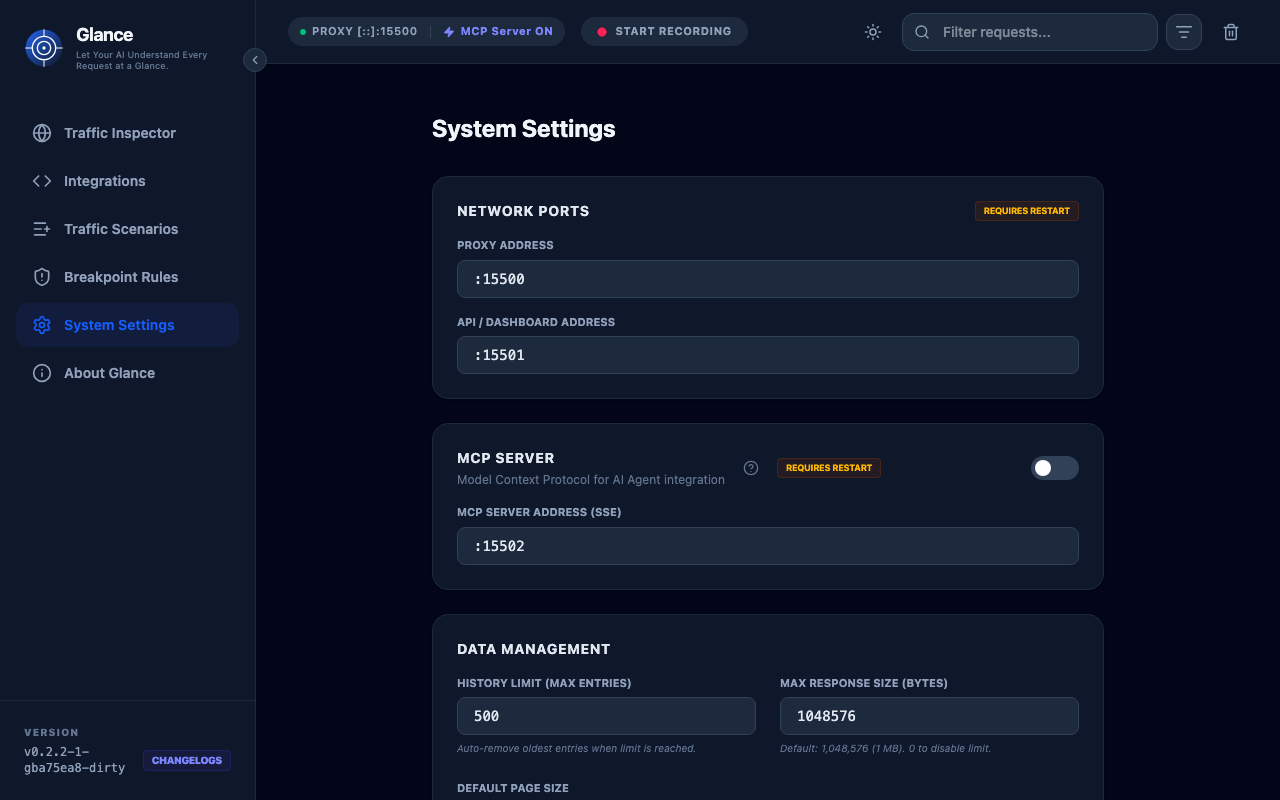
Glance implements the Model Context Protocol (MCP), allowing AI agents to interact with network traffic programmatically. This enables powerful AI-assisted debugging and testing workflows.
What is MCP?
The Model Context Protocol is an open standard that allows AI agents to access external tools, resources, and context. Glance's MCP server exposes network traffic data and proxy controls to AI agents like Claude Desktop.
Quick Setup (Claude Code CLI)
Run this one-liner in your terminal to instantly connect Glance to Claude Code:
claude mcp add --transport http glance http://localhost:15502/mcpSetting Up with Claude Desktop
1. Locate Your Claude Desktop Config
The MCP configuration file is located at:
- macOS:
~/Library/Application Support/Claude/claude_desktop_config.json - Windows:
%APPDATA%\Claude\claude_desktop_config.json
2. Add Glance to MCP Servers
Edit the config file and add Glance as an HTTP/SSE server:
{
  "mcpServers": {
    "glance": {
      "type": "http",
      "url": "http://localhost:15502/mcp"
    }
  }
}
3. Restart Claude Desktop
Restart Claude Desktop to load the new MCP configuration. You should now see Glance listed as an available MCP server.
Setting Up with VS Code (Cline / Roo Code)
- Open MCP Settings in the extension.
- Add a new server with type
SSE. - Paste the URL:
http://localhost:15502/mcp
Using Glance with Claude
Once configured, you can ask Claude to interact with your network traffic:
Example Prompts
Inspect recent traffic:
Show me the last 10 HTTP requests captured by GlanceDebug API errors:
Analyze the recent traffic for any failed API calls and help me understand what went wrongGenerate API documentation:
Generate OpenAPI documentation from the captured traffic to the /api/users endpointCreate mocks:
Create a mock for the /api/login endpoint that returns a success responseExecute requests:
Make a GET request to https://api.github.com/users through the Glance proxyMCP Capabilities
Resources
Resources provide read-only access to proxy state and traffic data:
| Resource | Description |
|---|---|
proxy://status | Current proxy address, status, and active rules count |
traffic://latest | Most recent 10 HTTP requests in JSON format |
Tools
Tools allow AI agents to perform actions:
| Tool | Description |
|---|---|
inspect_network_traffic | List captured HTTP traffic with filtering and configurable limit |
inspect_request_details | Get full headers and body for a specific request |
execute_request | Execute custom HTTP requests through the proxy |
add_mock_rule | Create a mocking rule to return static responses |
add_breakpoint_rule | Create a breakpoint rule to pause traffic |
list_rules | List all active mocks and breakpoints |
delete_rule | Remove an interception rule by ID |
list_scenarios | List all recorded traffic scenarios |
get_scenario | Get full sequence details and variable mappings |
add_scenario | Create a new scenario with basic metadata |
update_scenario | Modify an existing scenario |
delete_scenario | Remove a scenario by ID |
clear_traffic | Reset/clear captured traffic logs |
get_proxy_status | Get real-time proxy address and status |
Prompts
Pre-defined prompts for common workflows:
| Prompt | Description |
|---|---|
analyze-traffic | Analyze recent traffic for errors or anomalies |
generate-api-docs | Generate OpenAPI documentation from captured traffic |
generate-scenario-test | Transform a recorded scenario into an automated test script |
Advanced Usage
Custom MCP Configuration
You can customize Glance's MCP server behavior with additional arguments:
{
  "mcpServers": {
    "glance": {
      "command": "/path/to/glance",
      "args": [
        "--mcp",
        "--mcp-port", "15502",
        "--log-level", "debug"
      ]
    }
  }
}
Using with Other MCP Clients
Glance's MCP server can be used with any MCP-compatible client, not just Claude Desktop. The server runs on http://localhost:15502 by default.
Example Workflows
1. Debug a Failing API Call
- Run your application with Glance proxy configured
- Reproduce the failing API call
- Ask Claude: "Show me the last request to /api/endpoint and help me debug why it's failing"
- Claude will use
inspect_network_trafficandinspect_request_detailsto analyze the issue
2. Generate Test Code from Scenarios
- Record a scenario in the Glance dashboard
- Ask Claude: "Generate a Playwright test script from the 'user-login' scenario"
- Claude will use the
generate-scenario-testprompt to create test code
3. Create Mocks for Testing
- Capture the real API response in Glance
- Ask Claude: "Create a mock for this endpoint that returns a similar response but with test data"
- Claude will use
add_mock_ruleto create the mock
Troubleshooting
Claude Can't See Glance
- Verify the path to the Glance binary is correct in your config
- Check that you restarted Claude Desktop after editing the config
- Look for error messages in Claude Desktop's MCP logs
MCP Server Won't Start
- Check if another service is using port 15502
- Try specifying a different port with
--mcp-port - Check Glance logs for error messages
Tools Not Working
- Make sure Glance is running and the proxy is active
- Verify that traffic is being captured in the dashboard
- Try using the tools directly in Claude to see specific error messages
Learn More
- MCP Tools & Resources Reference - Detailed API documentation
- Model Context Protocol Documentation - Official MCP docs